

Latest Post
Showing posts with label Modem. Show all posts
Showing posts with label Modem. Show all posts


UNLOCK IDEA 3G NETSETTER & Software Download
Written By Unknown on Friday, 10 August 2012 | 03:36
UNLOCK IDEA 3G NETSETTER HUAWEI E1732
Idea 3g netsetter E1732 for your laptops & desktops. Now set yourself free from the hassle of wires & installations and experience superfast internet where even the fixed mobile broadband signals fail.
It is an ultra slim USB modem that is ideal for users who need high speed data. For, Installation of this modem there is no requirement of any additional software or drivers.

UNLOCK IDEA 3G NETSETTER HUAWEI E1732
FEATURES:
- UMTS 2100MHz
- HSUPA / HSDPA / UMTS 2100 Mhz
- EDGE / GPRS / GSM 1900/1800/900/850 Mhz
- HSDPA – 7.2Mbps
- HSUPA – 5.76Mbps
- SMS Service
- Micro SD Card Slot (up to 4GB)
- Plug & Play
- Weight: 30g
- Support data statistics
- Size Dimensions: Normal
Support :- Windows XP SP2/SP3 , Vista SP1/SP2 , Windows 7, Mac OS X 10.5 & 10.6
UNLOCK IDEA 3G NETSETTER HUAWEI E1732
REQUIREMENTS- An internet connection (in case net setter data card require device drive then it can download them from internet directly).
- Disable Antivirus if you have any (I am using Eset AVAST which i have disabled during unlock procedure)
- You must have to download two files, 1) Download CDMA Workshop Full version and 2) Huawei e1732 downgrade firmware. (7zip will be needed to unzip the cdma workshop files)
- Make sure that your modem is detected in your PC and you should know the PORT number on which your modem is connected.
- Insert any SIM in modem Excepting idea (don’t insert idea SIM).
Steps to Unlock Huawei e1732 Idea Net Setter
- Disable Antivirus till the time unlocking is finished, because the crack of “CDMA Workshop v2.7” will be automatically deleted by your antivirus software.
- Insert Idea Net Setter modem in you PC/Laptop.
- Go to My Computer >> Properties >> Device Manager >> Ports (COM & LPT) >> HUAWEI Mobile Connect – 3G Application Interface (COM[X]), here X is the port number appear in your system. Note down the com port number in which your huawei e1732 idea net setter is connected.
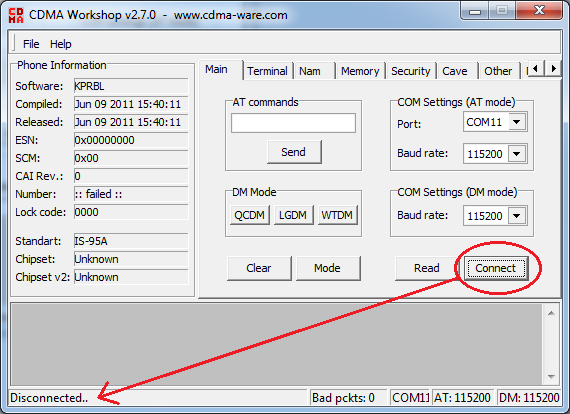
- Now Open “CDMA Workshop v2.7.0.exe“.
- Under the “Main” tab Select Port number(“COM Settings (AT mode)”) which you have get in step 3 and click on Connect button.
- Click on Read button.

- Go to “Security” tab > Type “000000” in the blank box under SPC. Click on SPC button >> Send button with Default (nv_read) as SPC.

- Now Go to “Memory” tab and in NV Items section Click on Read button. A Conform box will appear, just click OK and you will see a NV Items Backup box. In the box “Last NV Item” type “9999” and Click OK. Save the file by giving a file name you like (i.e. E1732Unlockfile etc.)


- Once the buffer reach 100% your file is saved successfully, now click OK on Information box.
- Minimize the “CDMA Workshop v2.7.0.exe” application.
- Now Open E1732 Downgrader application and run it. Accept the license agreement and click Next >> Wait for a few seconds until the search for your modem finishes.
(Don’t mark “Auto remove the device after update” check box) and click next and Start.

- At the end of Downloading Programs… you will get an “Update Failure!” error message box, just go ahead and click OK and then Finish.
- Again Maximize “CDMA Workshop v2.7.0.exe” application.
- Go to “Main” tab and Click on Finish button – Unplug your idea net setter now.
- Again Plugin your idea net setter modem in the computer and again find the Port number from device manager (as discussed in step 3)
- Now go to “CDMA Workshop v2.7.0.exe” and select the Port that you noted from your device manager
- Go to “Main” tab and click on “Connect”.
- Go to “Memory” tab and click on NV Items >> Write button. On confirm box click “OK” >> “Open” dialog box will appear. Choose the file that you saved before and wait till the buffer reaches to “100%” a “Information” dialog box appears with a success message.
- Click “OK” and go to “Main” tab >> Disconnect.
- Now close “CDMA Workshop v2.7.0” >> A “Confirm” dialogue box will appear >> Click “NO”
- Now you have successfully unlocked it
Unlock Huwaei E1550 USB Modem – Idea 3G & Idea 3G Modem Hacking
If you are having Huawei E1550 Idea 3G 3.6 Mbps USB Modem and you want to unlock it then visit the following link for the full tutorial on how to Unlock huawei E1550 USB Modem :
and if you are sure about you bearing an Idea 7.2 Huawei E1732 Device then Read ahead for the step by step unlocking tutorial.

Below are the Specification of the Huwaei E1732 USB Modem I Unlocked :
So, lets move on to our main theme now – Unloacking Huawei E1732 USB Modem.
![Unlock Huawei E1732 USB Modem - Idea 3G [Solved & Working] - Featured Iamge](https://lh3.googleusercontent.com/blogger_img_proxy/AEn0k_sOCSwPVsADaywc7yS60qDGPQxX2Vc1eZ5oR0Ack0YweOLkxoVDxUothmtkgyEv3Shdo9SPif5PCk5skCPh0W1M2CfjNFJpB-e-mSWhPi7e05PIE7PXIQ3-WD0EFY9LwO-lshdEVR9WDSBeUY3tAysCx4hH25AMnFfg0ICxvmXWmiVp-BSLM28Rp1nfbj3E2sKDGPftIzIxTPHEPq-3=s0-d "Unlock Huawei E1732 USB Modem - Idea 3G [Solved & Working] - Featured Iamge") You are gonna require some Huawei Unlocking Tools to unlock your modem. I got them on some forum, have archived them and uploaded for everyone of you. You can get them downloaded from the below link.
You are gonna require some Huawei Unlocking Tools to unlock your modem. I got them on some forum, have archived them and uploaded for everyone of you. You can get them downloaded from the below link.
Download Huawei E1732 3G USB Modem Unlocking Tools By Clicking Here.
(Note : You have to wait for 5 Seconds and then Click on SKIP AD to directly download the file)
This archive contains five files as below :
1 – Universal Master Code
2 – Huawei E173X Firmware Download (Downgrade – Unlocked Firmware)
3 – Huawei Mobile Partner
How to Unlock Huawei Idea E1732 3G 7.2 Mbps USB Modem :
Step 1 :
Note down the IMEI Number of your USB Modem from the box or from the back side of your USB Modem.
Step 2 :
Extract the downloaded archive and open the first file named ‘ 1 – Universal Master Code. ‘ In the Universal Master Code, put your USB Modem IMEI Code as noted in step 1 and then generate the Flash Code and Unlock Code.
Step 3 : Plug the Idea Huawei 3G 7.2 Mbps E1732 USB Modem in your USB and let it complete driver installation.
Step 4 :
Open the second file in the archive i.e ’ 2 – Huawei E173X Firmware Download (Downgrade) ’ this will replace your existing firmware and install the unlocked version firmware for your modem. The installation is automatic and safe if you follow all the instructions while installing it. Don’t worry at all about loosing your device cos if installation fails it backs up your original firmware and you will get it back but locked.
Also while starting the installation of the unlocked firmware it will ask you for the flash code. Insert the Flash Code you got calculated by Universal Master Code.
This will take a few minutes and then we move to the next step.
Step 5 :
After Downgrading the firmware. Remove the device from you computer. Now Install Huawei Mobile Partner, which is the third file in your downloaded archive. While the installation is in process, change the sim card in your usb modem, remove the bundled Idea 3G sim card and insert any other network/carrier sim card you want to use in it.
Step 6 :
After you are done installing Huawei Mobile Partner and swapping the sim card in you USB Modem, open the Huawei Mobile Partner Application and then insert the USB Modem with different network sim card.
After the Mobile Partner is done detecting your USB Modem Device, it will pop up asking you for the Unlock code saying the device is locked.
Step 7 :
In the pop up box of Huawei Mobile Partner asking you for the unlock code, insert the unlock code you generated using Universal Master Code.
Hurray Finally Your Huawei E1732 USB Modem is unlocked. Now you can do your personal settings in your mobile partner and connect to the internet and use services. To check if your modem is successfully unlocked see if the mobile partner software is displaying your carrier name and is showing available network.
Guys, if your modem unlocking procedure is unsuccessful or if you are unable to unlock your modem due to some reasons, then just don’t worry, we are here to help you out..
This Tutorial is just for educational purpose and of course to Unlock your own Huwaei E155X USB Modem. Don’t worry unlocking your modem is not at all illegal as you risk your warranty and your device while doing so.
So, lets move on to our main theme now – Unloacking Huwaei E1550 USB Modem.
You are gonna require some Huwaei Unlocking Tools to unlock your modem. I got them on some forum, have archived them and uploaded for everyone of you. You can get them downloaded from the below link.

and if you are sure about you bearing an Idea 7.2 Huawei E1732 Device then Read ahead for the step by step unlocking tutorial.

Below are the Specification of the Huwaei E1732 USB Modem I Unlocked :
- UMTS 2100MHz
- HSUPA / HSDPA / UMTS 2100 Mhz
- EDGE / GPRS / GSM 1900/1800/900/850 Mhz
- HSDPA – 7.2Mbps
- HSUPA – 5.76Mbps
- SMS Service
- Micro SD Card Slot (up to 4GB)
- Plug & Play
- Weight: 30g
- Support data statistics
- Size Dimensions: Normal
- System Requirements : Windows XP SP2/SP3 , Vista SP1/SP2 , Windows 7, Mac OS X 10.5 & 10.6
So, lets move on to our main theme now – Unloacking Huawei E1732 USB Modem.
You are gonna require some Huawei Unlocking Tools to unlock your modem. I got them on some forum, have archived them and uploaded for everyone of you. You can get them downloaded from the below link.Download Huawei E1732 3G USB Modem Unlocking Tools By Clicking Here.
(Note : You have to wait for 5 Seconds and then Click on SKIP AD to directly download the file)
This archive contains five files as below :
1 – Universal Master Code
2 – Huawei E173X Firmware Download (Downgrade – Unlocked Firmware)
3 – Huawei Mobile Partner
How to Unlock Huawei Idea E1732 3G 7.2 Mbps USB Modem :
Step 1 :
Note down the IMEI Number of your USB Modem from the box or from the back side of your USB Modem.
Step 2 :
Extract the downloaded archive and open the first file named ‘ 1 – Universal Master Code. ‘ In the Universal Master Code, put your USB Modem IMEI Code as noted in step 1 and then generate the Flash Code and Unlock Code.
Universal Master Code
Step 4 :
Open the second file in the archive i.e ’ 2 – Huawei E173X Firmware Download (Downgrade) ’ this will replace your existing firmware and install the unlocked version firmware for your modem. The installation is automatic and safe if you follow all the instructions while installing it. Don’t worry at all about loosing your device cos if installation fails it backs up your original firmware and you will get it back but locked.
Also while starting the installation of the unlocked firmware it will ask you for the flash code. Insert the Flash Code you got calculated by Universal Master Code.
This will take a few minutes and then we move to the next step.
Step 5 :
After Downgrading the firmware. Remove the device from you computer. Now Install Huawei Mobile Partner, which is the third file in your downloaded archive. While the installation is in process, change the sim card in your usb modem, remove the bundled Idea 3G sim card and insert any other network/carrier sim card you want to use in it.
Step 6 :
After you are done installing Huawei Mobile Partner and swapping the sim card in you USB Modem, open the Huawei Mobile Partner Application and then insert the USB Modem with different network sim card.
After the Mobile Partner is done detecting your USB Modem Device, it will pop up asking you for the Unlock code saying the device is locked.
Step 7 :
In the pop up box of Huawei Mobile Partner asking you for the unlock code, insert the unlock code you generated using Universal Master Code.
Hurray Finally Your Huawei E1732 USB Modem is unlocked. Now you can do your personal settings in your mobile partner and connect to the internet and use services. To check if your modem is successfully unlocked see if the mobile partner software is displaying your carrier name and is showing available network.
Guys, if your modem unlocking procedure is unsuccessful or if you are unable to unlock your modem due to some reasons, then just don’t worry, we are here to help you out..
This Tutorial is just for educational purpose and of course to Unlock your own Huwaei E155X USB Modem. Don’t worry unlocking your modem is not at all illegal as you risk your warranty and your device while doing so.
So, lets move on to our main theme now – Unloacking Huwaei E1550 USB Modem.
You are gonna require some Huwaei Unlocking Tools to unlock your modem. I got them on some forum, have archived them and uploaded for everyone of you. You can get them downloaded from the below link.

Modem Configuration (PPP Link Control Protocol Was Terminated)
Written By Unknown on Sunday, 5 June 2011 | 09:53
Modem Configuration (PPP Link Control Protocol Was Terminated)
Many Modems Like Samsung Mobile USB Modem,Motorola Mobile Modem Shows An Error PPP Link Control Protocol Was Terminated ,While Dialing A Dial Up Network.Many Samsung And Motorola Mobile Users Has The Same Problem.Well Solution Of This Dialup Problem Is


Press Win+RType devmgmt.mscLocate Your Modem Right Click To open its PropertiesGoto Advance TabEnter Extra Initialization Command:AT+CGDCONT=1,"IP" Internet APN"Internet APN Depends On Your Service Provider Such As "bsnlnet" or "airtellive" etc. For bsnl 3g in northzone Enter APN "gprsnorth3g.bsnlmobile.in"
Press Win+RType devmgmt.mscLocate Your Modem Right Click To open its PropertiesGoto Advance TabEnter Extra Initialization Command:AT+CGDCONT=1,"IP" Internet APN"Internet APN Depends On Your Service Provider Such As "bsnlnet" or "airtellive" etc. For bsnl 3g in northzone Enter APN "gprsnorth3g.bsnlmobile.in"
AIRTEL
AT+CGDCONT=1,"IP","airtelgprs.com"
AIRCEL
AT+CGDCONT=1,"IP","aircelgprs.com"
IDEA
AT+CGDCONT=1,"IP","ideagprs.com"
DOCOMO
AT+CGDCONT=1,”IP”,”TATA.DOCOMO.INTERNET”
MTS
AT+CGDCONT=1,"IP","www.mts.com.ua" (for Windows 9х-XP), +CGDCONT=1,"IP","www.mts.com.ua" (for Windows CE) or AT+CGDCONT=1,"IP","www.mts.com.ua" (for Linux).


